
Sound System Setup and Livestream Operation
TL:DR;
Use Stream Deck to control Scenes in OBS, not the mouse or keyboard.
Turn amplifier on last. Turn it off first.
Do not plug in Stream Deck before turning laptop on. The laptop will not POST (boot) with the Stream Deck plugged in.
Setup
-
Retrieve sound cabinet from large storage room next to kitchen.
-
Position cabinet between the keyboard and speaker next to the power outlet.
-
-
Unlock all 8 locks and place on top of cabinet so none get misplaced. (Keys are held by Pastor Jim, Ace, Ian, Neal)
-
Open cabinet by unfolding 8 latches and turning counter-clockwise to release covers. (4 latches per cover)
Pull front and back covers off and place leaning against wall in corner of room so they're not in the way.
-
Retrieve speaker stands from storage closet.
-
Place one against wall between sound cabinet and power outlet.
-
Place other stand on the other side of room.
-
- Plug in outlet expander and cabinet to wall power
- Retrieve tablet and laptop from cabinet drawers. Place on center table at back of auditorium.
- Four mic stands should be set up along the front.
- One for the pulpit.
- Two on either side of pulpit.
- One for the violin. This should be set high and pointing down to the violinist to capture the best sound.
- Four microphones mounted on those mic stands.
- Microphone trunk/cables laid out along front and plugged in to mixer and mics.
- Male ends should start at the edge where the rack cabinet is located. They are also labeled with numbers for their appropriate channel on the mixer.
- Mic cables are velcro-ed to specific points along the trunk according to their appropriate position.
- trunk contains a single speaker cable for the far left speaker.
- A separate ¼ cable is in the cabinet to use for the right speaker.
-
Use braided ¼-inch audio cable for piano.
-
plug into mixer channel 5.
-
plug into port on piano labeled R/R+L.
-
- Retrieve smartphone ethernet/charging adapter and plug into router WAN port (left-most port labeled on router) and outlet expander.
- Uncoil power extension cord to the sound table. Follow the walls to ensure cable is out of any walking path as best we can.
- Uncoil ethernet cable (from computer bag) following the same routing as the power extension.
- The ethernet adapter is probably attached to one end and this has to be at the table. Plug ethernet into the rightmost port on the router in rack cabinet.
- Plug laptop and USB charger hub into power extension cord at back table.
- camera plugs into charger hub with a USB to DC cable.
- Setup camera on tripod. Plug into power using DC to USB cable.
- Plug in micro HDMI to camera. Plug other end with USB HDMI capture device into laptop.
Startup
-
Turn on cabinet power by flipping the switch at the top right corner of the cabinet.
Note: I suggest not turning the amplifier on yet. Standard operating practice for live sound engineers is that the amplifier should be turned on last (and turned off first!). This is not imperative but is recommended. -
Remember to plug Pastor's phone into router for internet access.
plug phone into ethernet adapter on sound cabinet, go into settings and toggle Ethernet tethering on.
-
To keep things simple, ensure both the Ethernet adapter and Stream Deck are unplugged BEFORE turning the laptop on.
Laptop will not boot if Stream Deck is plugged in.
Laptop sometimes does not connect to mixer automatically if ethernet adapter is plugged in too early.
-
Turn laptop on.
-
When the computer has fully booted to the desktop, plug in the Ethernet adapter and Stream Deck.
-
double click the shortcut on the desktop labeled bbcmt_livestream.sh. This will open all software needed.
- OBS Studio (for video and broadcasting)
- Web browser (for editing livestream title and opening pastor's notes)
- two tabs should auto load: Youtube and Onedrive/Word.
- Reaper (for control of audio related to the livestream)
-
This is a Digital Audio Workstation. Typically used for audio recording and editing but is useful for our purposes as well.
Project template for the livestream will auto load with all relevant channels preconfigured.
Note that the channel numbers in Reaper DO NOT correspond to channel numbers on the tablet.
-
- qpwgraph
- this is a virtual patchbay for routing audio on the computer between the mixer, Reaper, and OBS Studio.
It should load minimized to the system tray.
- this is a virtual patchbay for routing audio on the computer between the mixer, Reaper, and OBS Studio.
- Radio (radio icon in system tray)
-
This is a simple media player.
The player should auto-start if and when internet is detected. If it doesn't, click on the tray icon and click Resume or Pause to toggle playback until it works.
-
-
Load Pastor's notes from onedrive. Web browser tab should have automatically opened to show recent files that Pastor has accessed. Ask him if you're not sure which file is for the service.
-
Turn on tablet for microphone control in auditorium.
press and hold power button for several seconds until display turns on and it begins booting.
Swipe up when the lock screen displays to unlock tablet. No password or pin is needed.
Ensure tablet is connected to BBCMT wireless network.
-
Turn Amplifier On
-
Test microphone inputs using Universal Control app on tablet.
Open Universal Control app and tap on our mixer to open the control interface.
Go around each mic, unmuting as needed using the app, and speaking into the microphone to test output. Remute mics until needed.
-
Edit youtube livestream title to match sermon title from Pastor's notes.
Firefox should have loaded a tab to the youtube control panel
- Use Pastor's notes to load bible references into OBS Studio bible plugin.
Operation
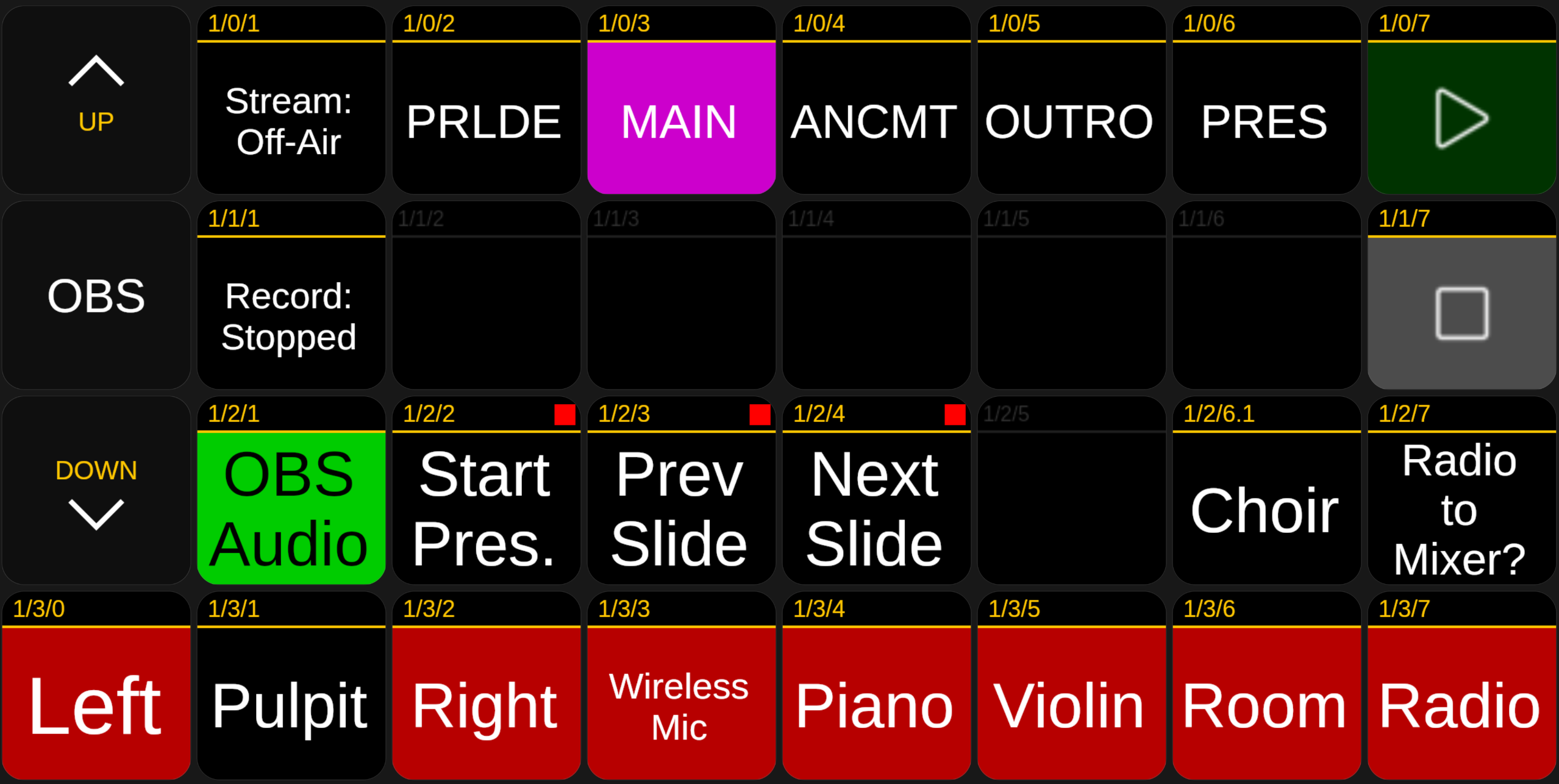
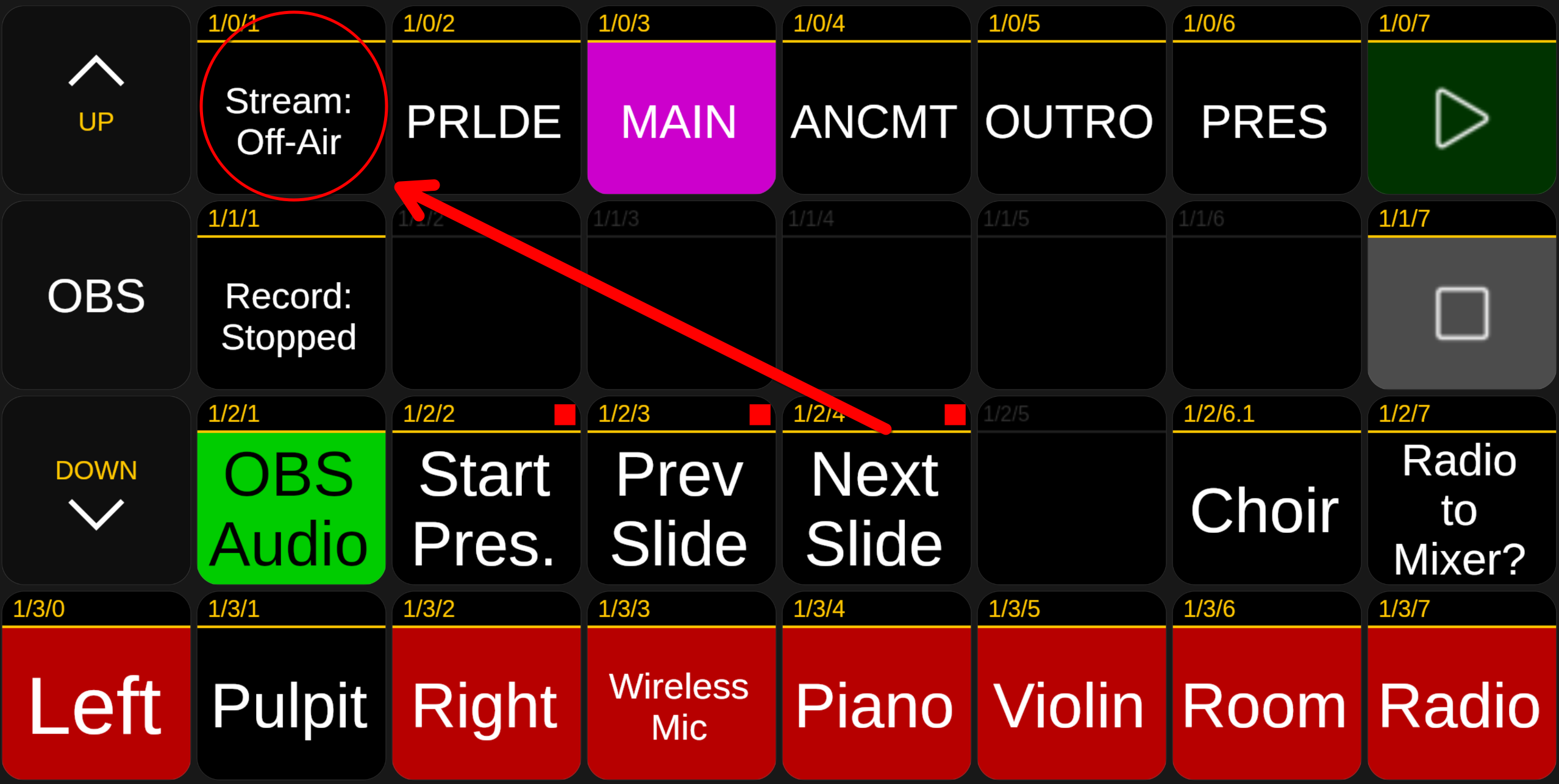
The Stream Deck should look similar to this after it is plugged in.
If there is ANYTHING you glean from this document, let it be the following...
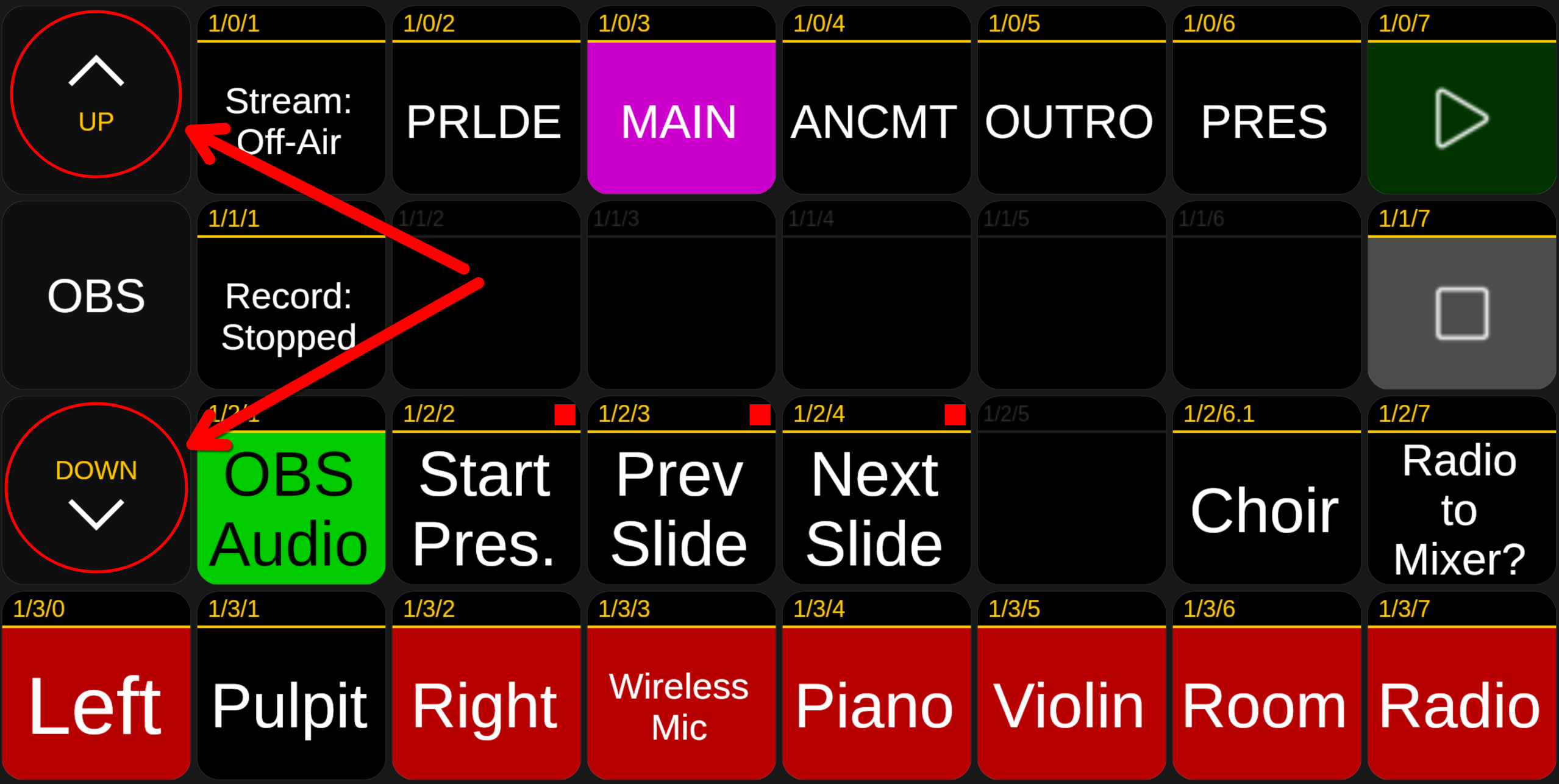
Do not use the Scene panel in OBS!
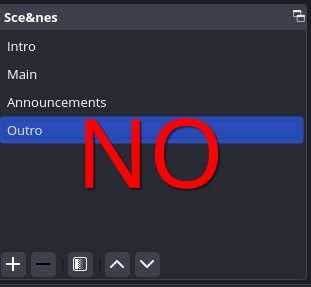
Use the Stream Deck!
It will make operation of the live stream so much easier!
The background color of the button will change to indicate which scene is active. They additionally mute and unmute specific microphone channels so it is important that we use these buttons to change scenes and not the mouse within OBS.
PRLDE is when the livestream is started before the service begins. Mutes everything except for the Radio (waiting background music).
MAIN is the primary scene to use during hymns, sermons, etc. Unmutes the Pulpit mic and mutes the Radio.
ANCMT is used during announcements as Pastor does not want to broadcast any personal information he may be sharing with the church during that time. Mutes everything AND unmutes the Radio.
OUTRO is to use at the VERY end after the sermon and last hymn (if there is one) to close the livestream. Mutes everything.
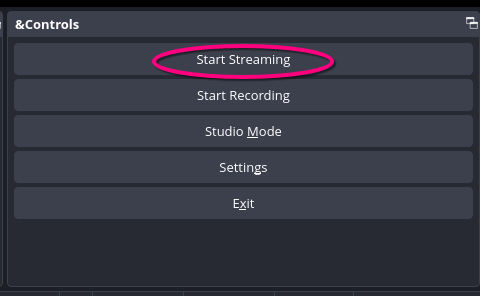
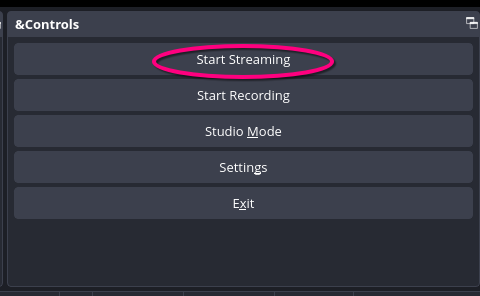
The stream can be started one of two ways.
- by pressing the button labeled 'Stream' on the Stream Deck.
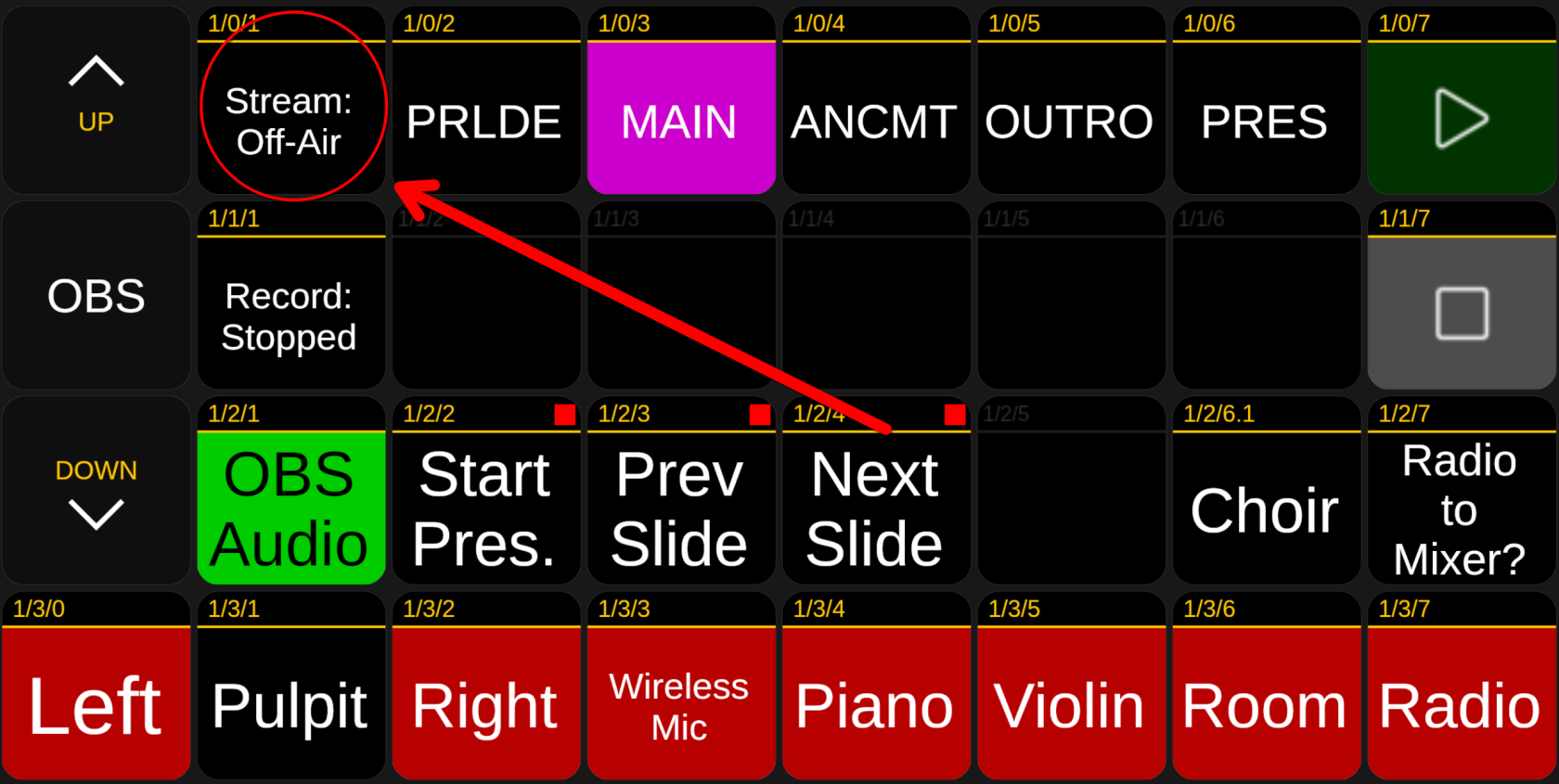
- Or you can click the stream button in OBS if you wish.
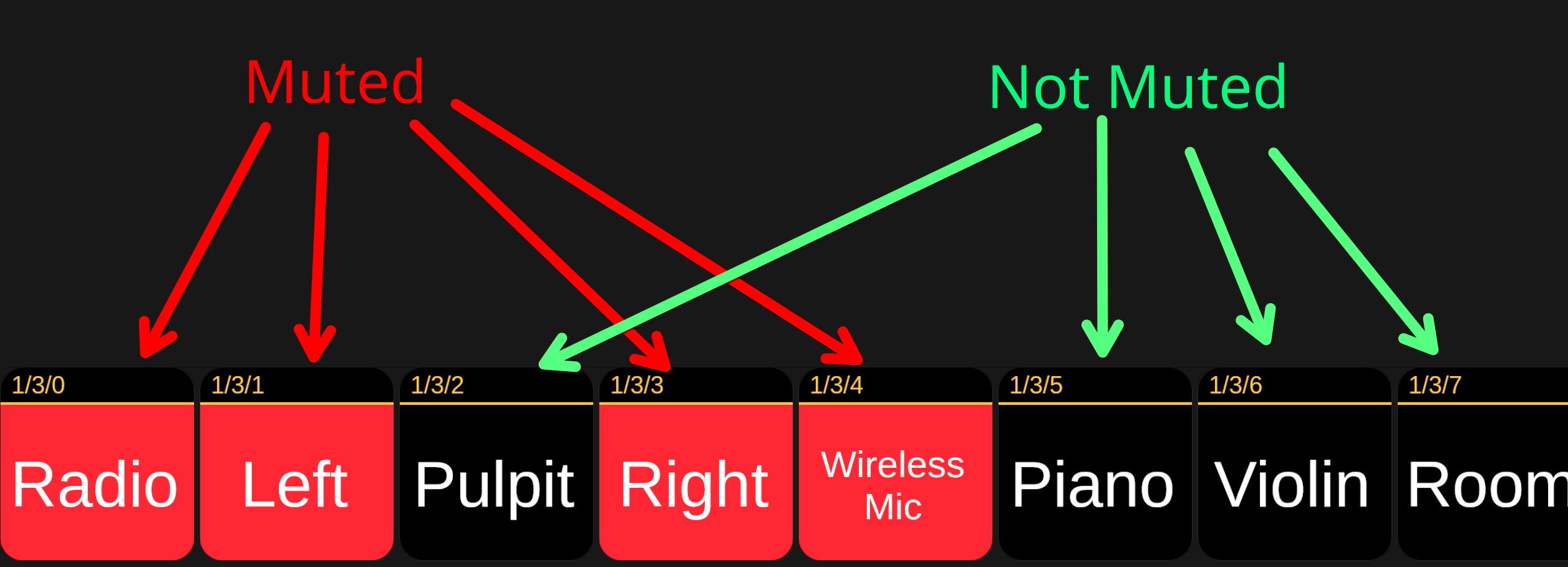
To control muting of microphones during service, notice the bottom row of buttons labeled Radio, Left, Pulpit, Right, Wireless Mic, Piano, Violin, and Room.

These control the muting and unmuting of microphones for the livestream. Buttons with a RED background are muted and are not heard on the livestream. Press the relevant button to change the mute status.
- Radio refers to the background music used on the livestream while waiting (during the PRLDE and ANCMT scenes).
- Left is the microphone on the left side of the pulpit (our left while sitting at the table).
- Pulpit is the center mic on the pulpit.
- Right is the mic to the right side of the pulpit.
-
Wireless Mic is the lavalier microphone used by the preacher.
This channel uses a de-reverb plugin to ensure sermon is clear and easy to understand. Highly preferred for the preaching.
- Piano is self-explanatory.
- Violin is the mic aimed at the violin
-
Room is the microphone located on the video camera. This should be unmuted while the congregation is singing hymns and muted at all other times.
Try to make sure that Room is muted while anyone is talking at the pulpit. It will pick up a lot of reverb and make it hard to understand to what is said if left unmuted.
PTZ Camera Controls
OBS Bible Plugin
This dock should be visible along the right side of the OBS Studio window.
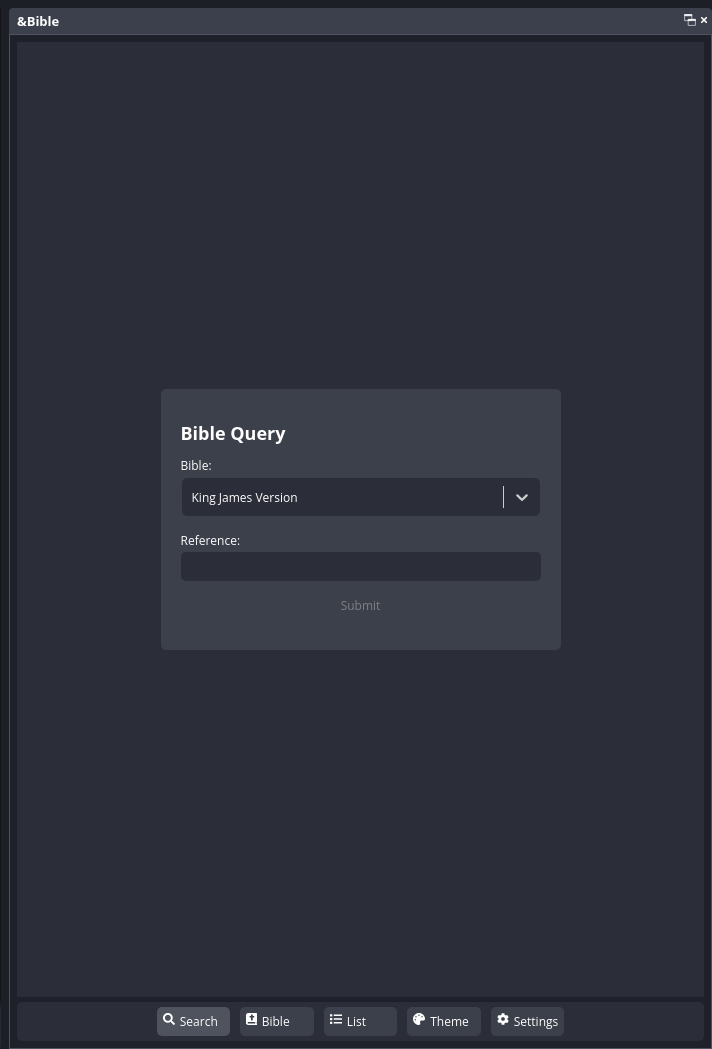
First, click the List button to open the list of saved references.
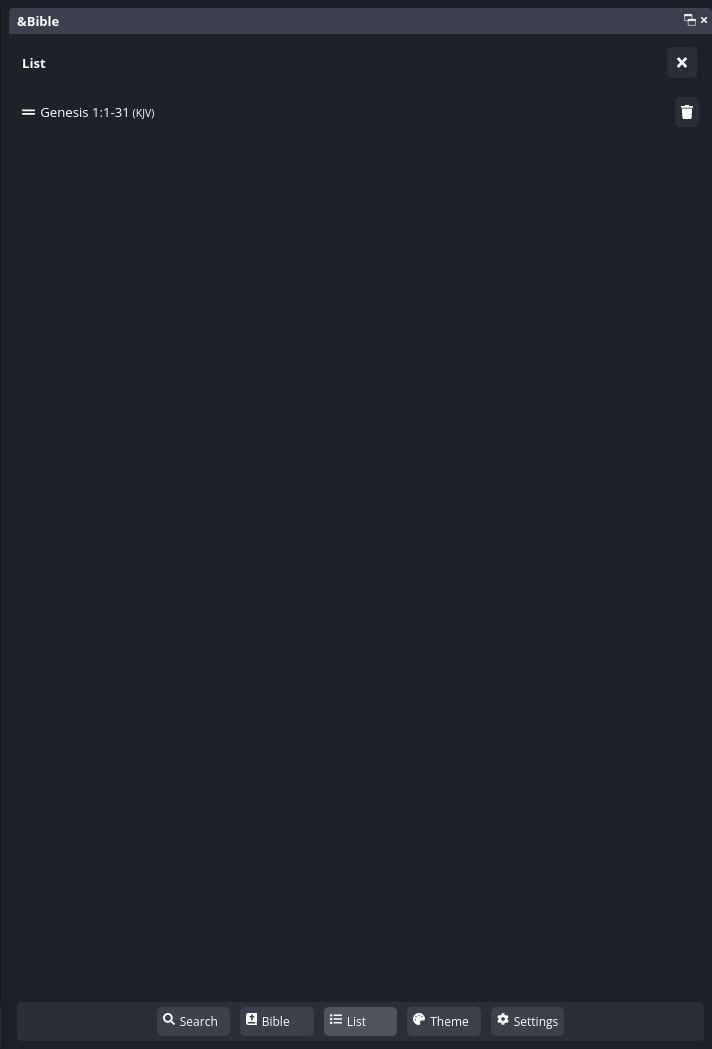
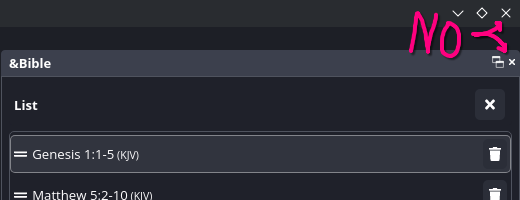
We need to clear the prior week's references. At the top right corner of the dock, there should be a X button used to clear the list.

BEWARE do NOT click the ‘other’ X's.
After clicking the proper X, there will be a popup at the bottom asking for confirmation.
Click on Remove before time runs out to clear the list.

Return to the Search panel by clicking that button along the bottom of the panel.
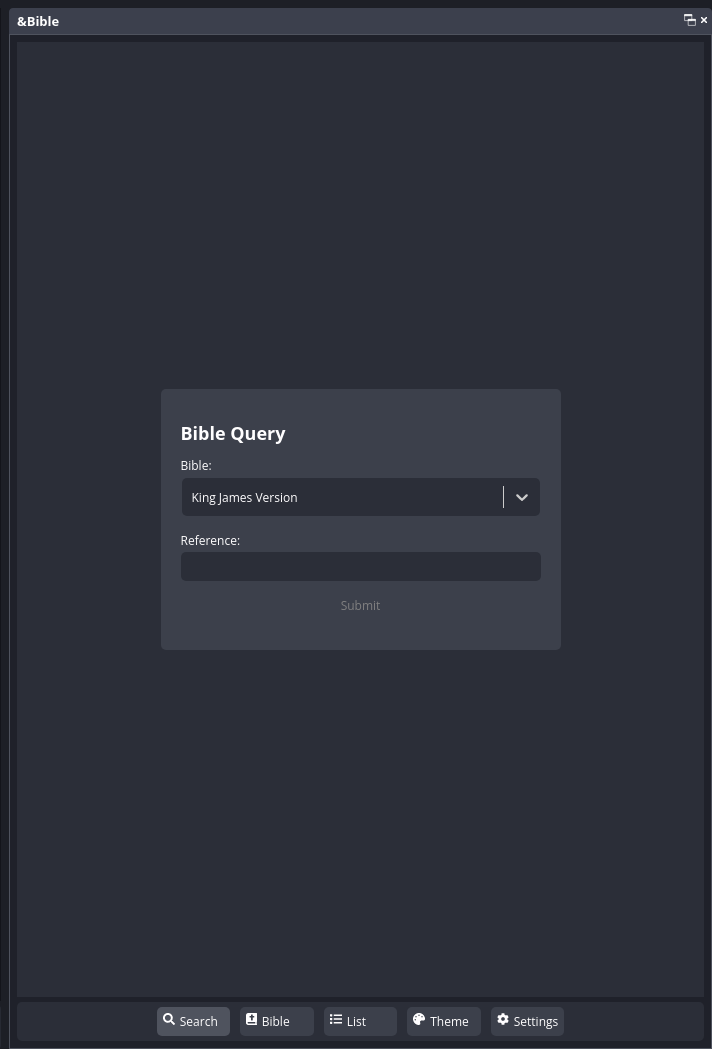
Use the typically Bold verses in Pastor's notes and search for those passages using the Reference text box.
After finding the passage, use the + icon to add that passage to the saved reference list.
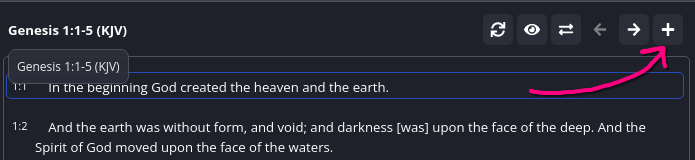
The passages you add will be shown in the List view making it easy to pull up the references Pastor chooses to use while preaching.
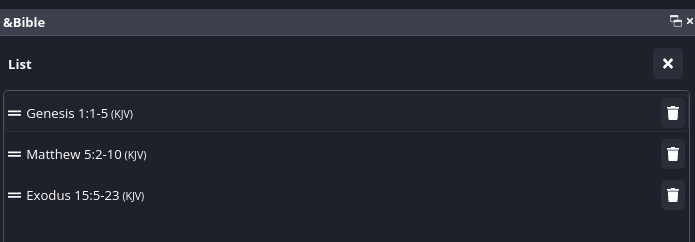
Click on the item to load that reference.
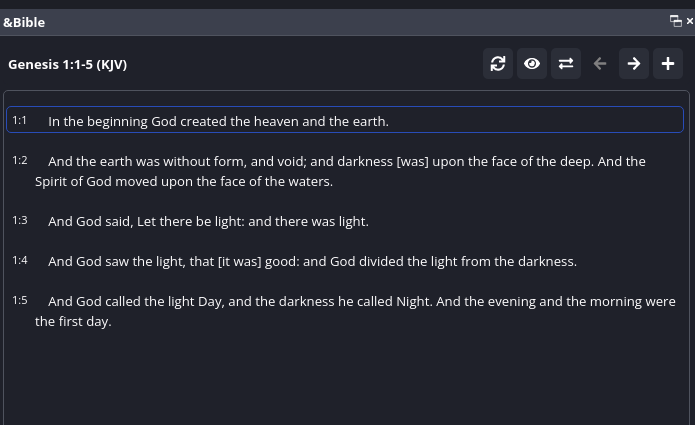
Click on the verse for it to be displayed on the livestream and it will be highlighted to reflect that.
When the verse is highlighted, it will be displayed on the MAIN scene.
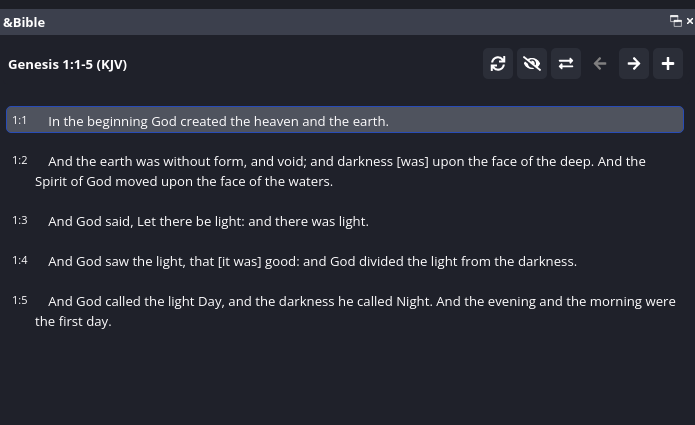
Click on each verse so the livestream viewers can see and follow along as Pastor (or anyone for that matter) is reading them aloud.
After the verse(s) have been read, click whichever verse is highlighted to deselect and hide the bible from the livestream.
Camera Angles
Generally we use 4 different frames.
- Centered on the pulpit and zoomed in close for the sermon.
- Centered on the pulpit and no zoom for congregational singing.
- Centered on the pulpit and slight zoom for choir.
- Centered on the piano/violin for offertory.
Conclusion
When livestream is concluded, feel free to close all software used (OBS Studio, Reaper, VLC, etc) ignoring any prompts to 'save' unsaved projects (Reaper does this)
- Turn off laptop.
- Either open the 'start' menu in the bottom left corner and click Shutdown, then click shutdown to confirm
- Or press the power button, then click shutdown to confirm.
- Turn off camera.
- Unplug all cables to camera and laptop
- Pack up Camera and place in computer bag.
- Unplug USB Power Hub and place in computer bag.
- Pack up any small cables into the computer bag.
Teardown
- Turn off amplifier.
- Turn off cabinet power
- Flip power switch (top right corner of cabinet)
- Unplug left speaker.
- Unplug microphones from cable trunk.
- Unplug right speaker.
- coil speaker cable and place in cabinet.
- Unplug piano cable. Coil and place in cabinet.
- Unplug all mic cables from mixer.
- Push button above each mic plug to release from mixer.
- Unplug Left speaker cable from plug just above mixer on left side.
- Begin coiling microphone trunk from the mixer side.
- Use the over/under coiling technique to ensure cables lay flat next time.
- When a microphone cable splits off...
- Coil that section of the mic cable separately.
- Then place that coil with the primary trunk.
- Continue.
- Collect microphones from mic stands.
- Collect mic stands.
- Coil ethernet cable from sound table.
- use over/under technique to ensure cable lies flat next time.
- place in computer bag.
- Unplug and coil power extension cable from sound table.
- use over/under technique to ensure cable lies flat next time.
- place in cabinet.
- Unplug and coil smartphone adapter.
- unplug both ethernet cable and usb cable.
- place in cabinet.
- Unplug cabinet power from wall (along with outlet expander).
- place in cabinet.
- Close up cabinet.
- Retrieve cabinet covers and slide into place.
- Push latches into place and turn clockwise to close latch
- Lock cabinet.
- Ensure all 8 locks are in place and fully secure.
- Return cabinet to storage room next to kitchen.
Additional Information
If you wish to learn more about the technical side of the setup beyond merely its operation...
Technical Details of Sound System.
Troubleshooting
| Laptop has no internet access? | Ensure a smartphone (with a USB-C connector) is plugged into ethernet adapter on top of cabinet, the adapter has its ethernet cable plugged into WAN port on router and Ethernet Tethering is enabled in the settings. |
| No sound from laptop headphones? | Open qpwgraph from system tray and connect output channels 1,2 from Reaper (right-side of box labeled Reaper) to headphone input channels (left-side of box labeled ______) |
| Laptop not receiving audio or the audio received is intermittent? |
double-click ‘reset_audio.sh’ shortcut on the desktop. A prompt for a password should appear once or twice. Not fixed? Reboot router by unplugging DC power connector on left side of router for 10 seconds, then plug back in. Not fixed? Reboot laptop. |
| Mixer not displayed in Universal Control app on tablet? | Ensure tablet is connected to wifi named “BBCMT”. |
| BBCMT wifi not found? | Ensure cabinet power is turned on and router power plugs are in place. |
| Clicked the wrong X while trying to clear the saved bible reference list and the panel disappeared? |
Click the OBS Studio menu labeled Docks. click item named Bible Plugin to reopen the bible control dock
|
